Email Subject Line Tester
Paste one or more subject lines to compare their length, where they are cut off in an inbox and anything that may hurt them.
Recent
Your last 10 settings, saved only in this browser. Nothing is uploaded.
How to use the email subject line tester
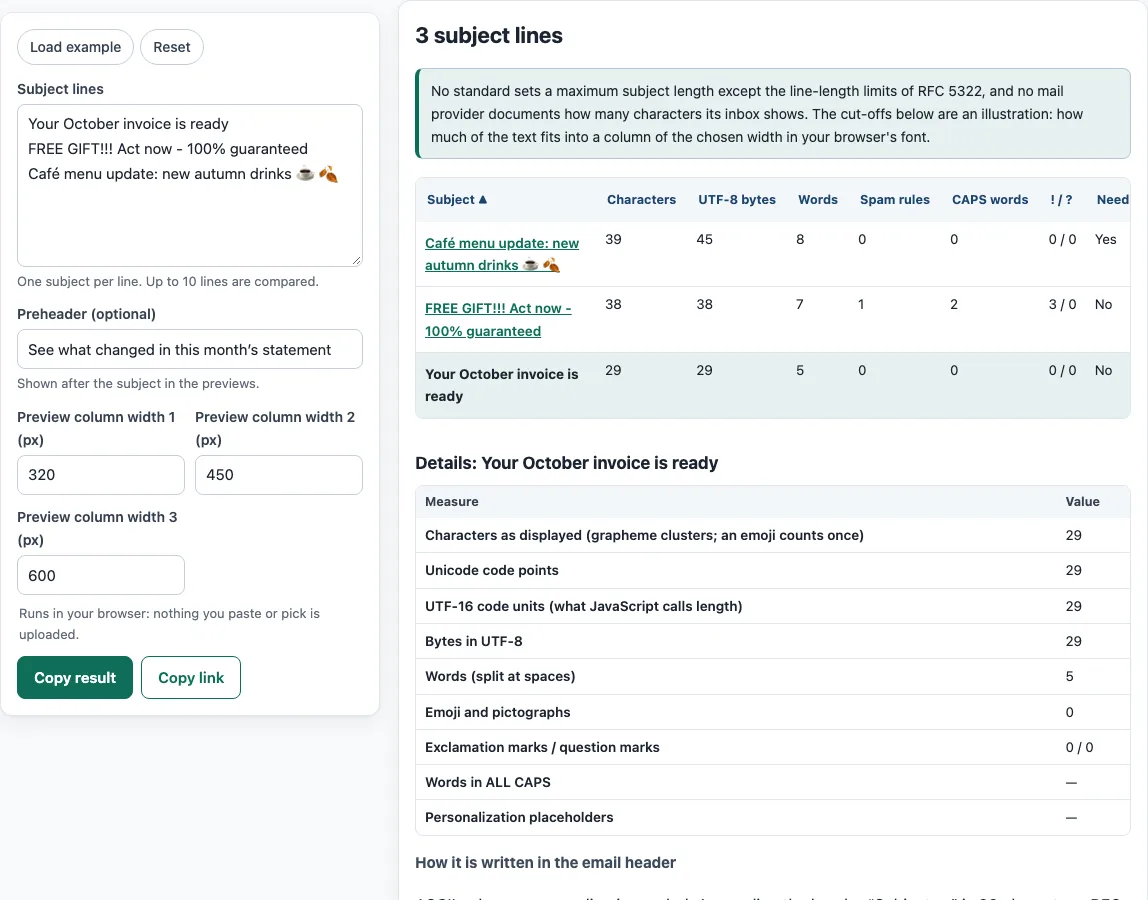
- Open the “Subject lines” field. A sample is pre-filled. Replace it with your own subjects, one per line, up to 10.
- Optionally, type your preview text in “Preheader (optional)”.
- Check the three “Preview column width (px)” fields. They default to 320, 450, and 600. Change them to the widths you want to compare.
- Read the results table. Each row shows characters, UTF-8 bytes, words, spam rules matched, CAPS words, ! / ?, whether the subject needs encoding, and whether it fits each chosen width.
- Click a subject to see details such as code points, UTF-16 units, emoji count, placeholders, and the header-encoding view.
- Click a column heading to sort the table and compare your subjects.
- Edit any subject that is flagged, then repeat steps 4 to 6.
Load example fills the fields with a sample so you can see the output before using your own text. Reset clears your inputs. Copy result copies the table as tab-separated text, which pastes into a spreadsheet. Copy link copies a link to share your current setup.
Test the subject together with its preheader, because many inboxes show both on one line and the preheader fills whatever space the subject leaves.
Keep the best two or three subjects and test them on real readers if your sending service supports split tests.
What is the subject line character limit?
Email standards set no fixed character limit for a subject. RFC 5322 section 3.6.5 treats Subject as unstructured text, so the only length rules are line limits: each line must be no more than 998 characters and should be no more than 78 characters, excluding CRLF. These limits apply to header lines, not to what a screen displays.
What an inbox shows is a different question. We found no RFC or mail-provider page that states how many characters or pixels of a subject are visible, so this tool does not give a fixed number. It shows an estimated cut-off, measured with canvas text in a 14 px system font at the widths you choose. Treat it as a guide to your layout, not a promise about every device.
Non-ASCII text adds another layer. Any non-ASCII character, including accents and emoji, makes the subject travel as an encoded-word under RFC 2047. Each header line that contains an encoded-word is limited to 76 characters. The tool builds this encoding and shows it. The first line has 9 characters of “Subject: " in front and holds 36 bytes of subject, and later lines hold 44 to 45 bytes. For example, “Café” becomes =?UTF-8?B?Q2Fmw6k=?=.
Count what the reader sees. The tool counts grapheme clusters using Intl.Segmenter, so an emoji with a skin tone or a family sequence counts as one character, even though the family emoji is several code points and 18 UTF-8 bytes. Count the personalized result, not the template. Tokens such as a name in double curly braces or [FIRST NAME] are replaced with a value for each recipient, so the tool flags them and its counts are an estimate.
In practice, put the words that matter most at the start of the subject. Whatever the cut-off in a given inbox, the start of the line is always shown, while the end is the first part to be hidden.
Sources (checked 13 October 2026): RFC Editor · RFC Editor (2) · RFC Editor (3) · tc39.es · GitHub
Frequently asked questions
Is the subject line tester free, and is anything I paste uploaded?
Yes, the tool is free, and there is no account or sign-up. It runs in your browser, so nothing you type, paste, or open is uploaded. The checks only read what you give them. The site does not send email, look up DNS records, or see sender reputation.
The spam-rule matches come from SpamAssassin subject and phrase rules. For example, SUBJ_ALL_CAPS only fires on subjects with more than one word and at least 10 letters. A match shows which pattern was found, so you can reword that part and test again.
Why do the characters and UTF-8 bytes columns show different numbers?
Characters counts grapheme clusters, while bytes counts how the text is stored in UTF-8. Plain English letters take one byte each, but accented letters and emoji take more, so the byte count is usually higher.
What does “needs encoding” mean?
It means the subject contains at least one non-ASCII character, so it must be sent as an encoded-word. Open the subject’s details to see the header-encoding view.
What do the spam rule matches tell me?
Each match names a rule that your subject line triggered, such as a CAPS pattern or a common phrase. Use the match to find the part of the wording to change, then test the new version.
Can I test a subject that has a personalization token?
Yes. The tool detects tokens such as names in double curly braces, *|X|*, %%x%%, ${x}, <<x>>, {x}, [FIRST NAME] and %FIRST%. Test a filled-in version as well, because the counts for a template are only an estimate.
Does the preview width change the result?
It changes the “fits” column. The tool checks each subject against the three widths you set, which default to 320, 450, and 600 px.
Can I save or share my results?
Copy result gives you the table as tab-separated text. Copy link gives you a link to share your current setup.
Related tools
- Email spam checker: use it to check the wider email for spam signals, not just the subject.
- Spam word checker: use it to look up individual words and phrases before you rewrite a subject.
- Email preheader tool: use it to write and compare the preview text that follows your subject.
- Email header analyzer: use it to read the headers of an email you have already received.
- Email HTML validator: use it to check the HTML of your email body for errors.
- Email signature generator: use it to build a signature to add below your message.