Out of Office Message Generator
Pick your situation and tone, add your dates and a contact, and get a ready-to-paste out of office reply with a subject line.
Recent
Your last 10 settings, saved only in this browser. Nothing is uploaded.
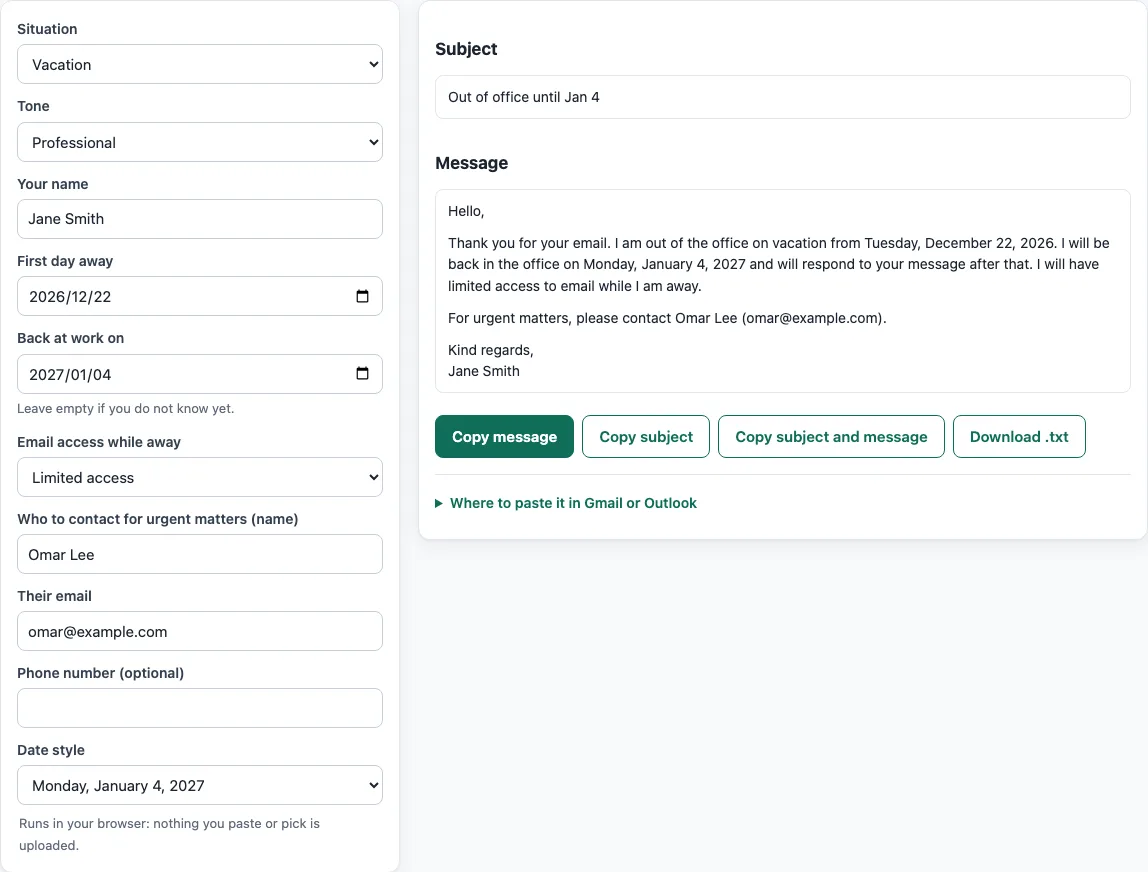
How to use the Out of Office Message Generator
- Choose a Situation, such as Vacation, Public holiday or office closure, or No longer with the company.
- Pick a Tone: Professional, Friendly, or Short.
- Type your name in Your name.
- Set First day away and Back at work on. If you do not know your return date, leave it empty.
- Choose Email access while away: Do not mention, Limited access, or Not checking email.
- Enter the person to contact for urgent matters: a name, an email address, and an optional phone number.
- Pick a Date style: US or UK.
- Read the Subject and Message panels. They update as you type.
- Click Copy message, Copy subject, Copy subject and message, or Download .txt.
If you choose Sick or medical leave, the tool leaves out the reason and the email access sentence for you. A warning appears if your return date is not after your first day away, so check the dates before you copy the text.
Some fields appear only when they make sense. The first day away and the return date are hidden for someone who has left the company, the email access option is hidden for sick leave, and the company name is asked for only in the no-longer-with-the-company situation. Change the situation at any time and the message is rewritten at once, so you can try several versions and keep the one you like.
What should an out of office message say?
A good out of office message says that you are away, gives the day you return, and names someone who can help with urgent matters. Those three points answer what most people need to know when they email you.
Keep the message short and plain. A subject line such as “Out of office until Jan 4” tells people the status before they open the email. In Gmail, adding a subject line to the vacation responder also makes the reply arrive as a separate email instead of sitting inside an existing thread.
How do I set up an out of office message in Gmail?
Gmail calls this feature the Vacation responder. You turn it on from Settings, then enter your dates, subject, and message.
- At the top right, click Settings, then See all settings.
- On the General tab, find Vacation responder and select Vacation responder on.
- Enter a first and last day, a subject, and your message.
- Optionally, tick the box to send replies only to your contacts.
- Click Save Changes.
The reply starts at 12:00 AM on the first day and ends at 11:59 PM on the last day. Your signature appears below the reply. A banner shows while it is on, and you can click End now to turn it off.
In most cases, each person gets the reply only the first time they email you. Someone may receive it again if they write after four days while it is still on, or if you edit the reply. Messages sent to spam and mailing lists you subscribe to do not receive it.
How do I set up automatic replies in Outlook?
The steps depend on which version of Outlook you use. In Outlook on the web, open Settings, then Account, then Automatic replies.
- Select the Settings gear, then Account, then Automatic replies.
- Turn on the toggle.
- Select Send replies only during a time period and enter a start and end time.
- Type your message.
- Optionally, select Send replies only to contacts.
- Select Save.
In new Outlook for Windows, go to View, then View settings, then Accounts, then Automatic Replies. In classic Outlook, go to File, then Automatic Replies, select Send automatic replies, optionally set a date range, and click OK.
Work or school accounts can also reply to people outside your organization. Microsoft warns that this reaches every sender, including newsletters, ads, and possibly junk mail, so the contacts-only option is the safer choice. Automatic replies are not supported for Gmail, Yahoo, or other POP or IMAP accounts in Outlook. For those accounts, a rule is used instead, and it only works while Outlook is running.
Should I give a reason in my out of office reply?
No, you do not have to give a reason in an automatic reply. Saying you are away, when you return, and who can help is enough for most people.
Leaving out the reason also keeps your private matters private. The tool’s Sick or medical leave option follows this approach: it never says why you are away.
Should I include a backup contact?
Yes, include a backup contact if anyone might need help while you are away. Give a name and an email address that a colleague will check during your absence.
The tool asks for this contact in the urgent matters fields, with an optional phone number. For example, the worked example names Omar Lee with an email address, so people know where to send urgent requests without waiting for your return.
Sources
Checked 18 October 2026: Google Help, Send automatic out of office or vacation responses (Gmail steps, reply timing, repeat replies); Microsoft Support, Send automatic out-of-office replies from Outlook (Outlook steps and the warning about replying outside your organization; the page shows no update date).
Frequently asked questions
Does the tool store or send what I type?
No. The tool runs in your browser, and nothing is uploaded or sent. Your entries are not written to the page address. Only choices such as tone or date style are.
Can I use the text at work?
Yes. The text the tool produces is yours to use anywhere, including at work or in a business. You do not need to give credit.
What happens if I leave the return date empty?
The message says “I will reply to your message when I return.” This works well if you do not know your exact return date yet.
Why does a warning appear about my dates?
A warning shows when your return date is not after your first day away. Check both dates and correct them before copying the message.
Why does the weekday appear in my message?
The tool works out the weekday from the date you enter. You do not need to type it yourself.
What is the difference between the US and UK date styles?
The US style reads “Monday, January 4, 2027.” The UK style reads “Monday 4 January 2027.” When both dates fall in the same year, the year is dropped from the start date.
Related tools
- Resignation email generator: Use this when you are leaving a job and need to write a formal resignation email.
- Subject line tester: Use this to check how a subject line reads before you send an email.
- Email preheader: Use this to write the short preview text that appears after the subject line.
- Email signature generator: Use this to create a signature that appears below your messages and replies.
- Write email text: Use this to draft and tidy up other emails you need to send.