HTML Email Template Gallery
Pick a template, add your brand color, logo and company details, then copy the HTML or open it in the builder.
Recent
Your last 10 settings, saved only in this browser. Nothing is uploaded.
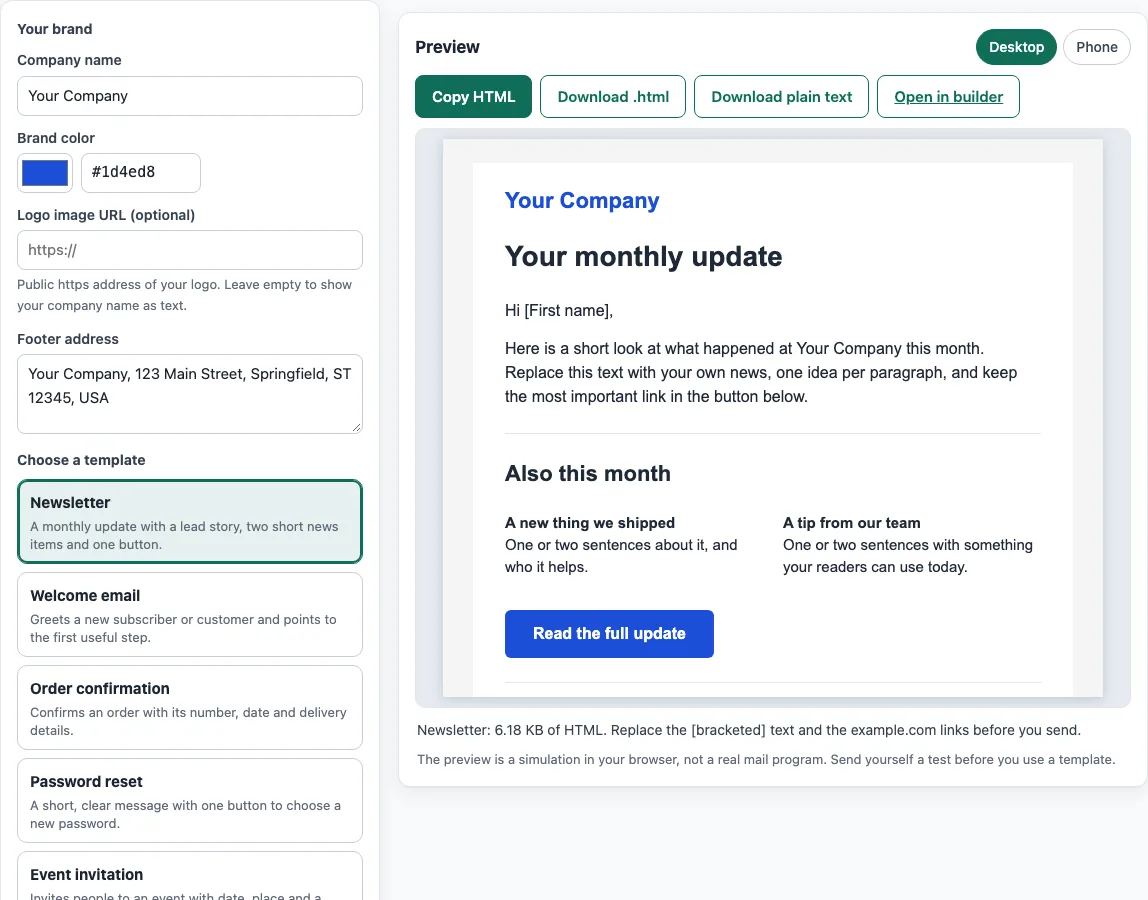
How to use the HTML email template tool
- Type your business name in the Company name field under “Your brand”.
- Choose a color with the Brand color picker, or type a hex value next to it.
- Optionally, paste the full web address of your image into Logo image URL. Leave it empty if you have no logo.
- Enter your postal address in Footer address.
- Under Choose a template, select one of the nine options: Newsletter, Welcome email, Order confirmation, Password reset, Event invitation, Product announcement, Abandoned cart reminder, Plain-text style or Two-column digest.
- Check the right-hand preview. Switch between Desktop and Phone width, and read the size line.
- Click Copy HTML to copy the code, or Download .html to save it as a file.
- Click Download plain text if you also want a text-only version to send alongside the HTML.
To keep working on the same email, click Open in builder. This opens the HTML email builder at /html-email-builder/ with your whole email carried in the page address (the ?s= parameter), so your changes carry over.
Each template keeps its own text when you switch, but the brand settings at the top apply to all of them, so you can compare several templates in your colors before you pick one.
Why do HTML email templates use tables and inline styles?
HTML email templates use nested tables and inline styles because many mail programs support only part of web CSS. A layout that works in a browser can break in an inbox, so the template relies on older, more widely supported parts of HTML.
Outlook for Windows (versions 2007 to 2019) draws HTML with the Word engine. Microsoft’s reference for Outlook 2007 lists unsupported properties including float, position, max-width, display and background-image. Caniemail also marks display:flex and display:grid as unsupported in Outlook for Windows, so modern layouts are avoided. Max-width works only partly, so the template sets it on a table and adds a fixed-width table inside Outlook-only conditional comments.
Styles in the head are also unreliable. Gmail does not support a <style> element inside the body, and it is not supported with non-Google accounts in mobile apps. For that reason, every color and size is written inline, and the <style> block holds only extras such as the stacking media query and dark-mode rules.
Dark mode has partial support. The template includes a color-scheme meta tag and a prefers-color-scheme block, but caniemail lists Gmail, Outlook for Windows and Yahoo as not supporting prefers-color-scheme. Expect the dark-mode rules to apply in some clients only.
Layout tables carry role=“presentation”, which removes their table meaning from screen readers. Nested tables stay visible to assistive technology, so content order matters.
A vendor reports that Gmail clips messages at about 102 KB of HTML. Google publishes no such limit, so treat the figure as a reported one. The templates are 5 to 9 KB.
Finally, RFC 2046 describes multipart/alternative, where the plainest version comes first and the richest comes last. Sending a text/plain version next to the HTML follows that model.
The templates use only web-safe fonts with a generic fallback, so text looks consistent where custom fonts are not loaded.
Sources (checked 13 October 2026): [Microsoft Learn](https://learn.microsoft.com/en-us/previous-versions/office/developer/office-2007/aa338201(v=office.12) · Can I email · Can I email (2) · Can I email (3) · MDN · help.drip.com
Frequently asked questions
Is the tool free, and is anything I paste uploaded?
Yes, the tool is free, and nothing you type, paste or open is uploaded. Everything runs in your browser, and there is no account or sign-up.
The templates use our own text. The HTML the tool generates may be used for any purpose, including commercial use, without attribution.
The site does not send email, look up DNS records or see your sender reputation. Its checks only read what you paste or open. The preview sits in a sandboxed frame, which blocks scripts and form submission inside it.
Can I use this HTML email template for marketing emails?
Yes, but marketing emails need more than a design. The FTC’s CAN-SPAM guide requires commercial messages to include a valid physical postal address and an opt-out that is honored within 10 business days and works for at least 30 days after sending. The marketing templates include a footer with an address and an unsubscribe placeholder (unsubscribe_url in double curly braces), which you must replace with your sender’s merge tag.
Will the preview look the same as my email app?
The preview is a useful check, but the tool does not claim it matches any mail program. Send a test to the apps your readers use, such as Outlook, Gmail and phone mail apps, before you send a campaign.
Does the template work in Outlook for Windows?
The layout is built for the Word engine, using tables and inline styles, and it avoids properties that Outlook for Windows ignores. For bulletproof buttons, the HTML email builder offers an optional VML button fallback inside conditional comments. Outlook for Windows is still the client that most often needs a test send.
Should I send a plain-text version too?
Yes, if you can. Click Download plain text and send that version alongside the HTML, so readers whose programs cannot show HTML still get your message. Plain text also helps when you check the message for clear wording.
Does the tool host my logo?
No. The tool does not host images. Enter a logo image URL that points to an image you already host. If you leave the field empty, the template contains no logo.
What is the difference between Copy HTML and Open in builder?
Copy HTML and Download .html give you the finished code as it stands. Open in builder opens the HTML email builder at /html-email-builder/ with your whole email carried in the address, so you can keep editing it there.
Related tools
- Email footer generator: use it to build a footer with your address and opt-out wording before you add it to a template.
- HTML email builder: use it when you want to edit the email block by block, including the VML button option.
- Email spam checker: use it to read pasted email text for common spam signals before you send.
- Email template size calculator: use it to check how large your HTML is against the clipping threshold reported for Gmail.
- Email HTML validator: use it to check pasted HTML for structural errors before you test-send.
- Email banner size calculator: use it to find the right width and height for a banner image in your email.
- Email font size preview: use it to see how text sizes look before you set them in your template.
- Email signature generator: use it to create a signature to add below the email body.