Email Preheader (Preview Text) Tool
Write your subject and preheader to see them in an inbox row, then copy the hidden preheader HTML for your email template.
Recent
Your last 10 settings, saved only in this browser. Nothing is uploaded.
How to use the Email preheader tool
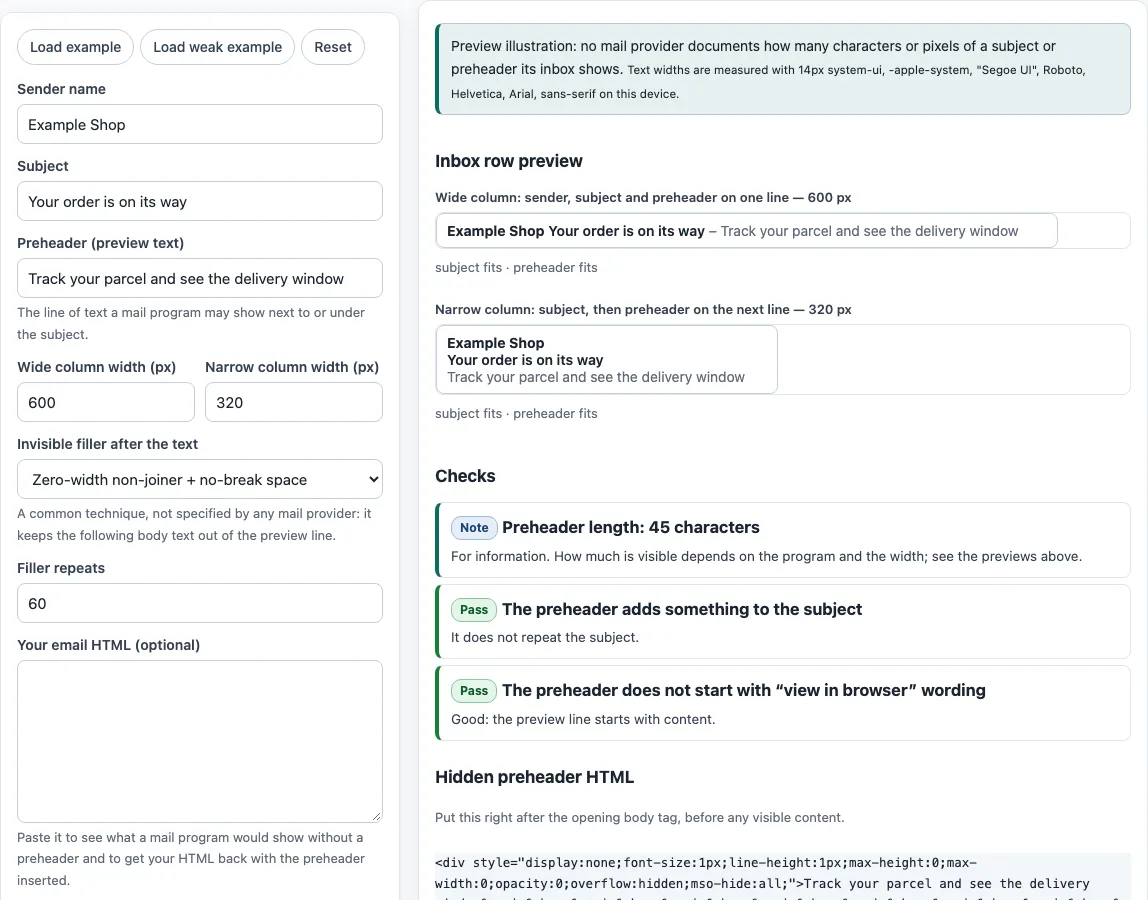
- Look at the sample. The fields are pre-filled. Click Load example for a strong sample or Load weak example to see a weak one.
- Enter your Sender name and Subject.
- Type your text in Preheader (preview text).
- Set Wide column width (px) and Narrow column width (px) to the widths you want to test. The wide preview shows sender, subject and preheader on one line. The narrow preview stacks them.
- Read the checks: empty, repeats the subject, “view in browser” wording, hidden block already present, and what would show without a preheader.
- Choose an Invisible filler after the text option and set Filler repeats (0 to 300).
- Optionally, paste your email HTML into Your email HTML (optional) to see whether a hidden block is already there.
- Copy the result with Copy snippet (the hidden block only), Copy HTML with preheader, or Download HTML with preheader (the full HTML). Use Reset to start again.
If you only need the hidden block for a template, use Copy snippet. If you want a complete file to open or test, use Download HTML with preheader.
Send yourself a test after you add the snippet: inbox views vary, and a test shows the real preview line.
What is an email preheader?
An email preheader is the short preview text that appears beside the subject in many inboxes. It is not defined by any RFC or mail-provider help page, so the preview line is produced by each mail program. When an email has no dedicated preview text, programs commonly show the first text of the body instead.
Where does preheader text appear in email?
It appears in the inbox row next to the subject, which is often shown as one line on wide screens and stacked on narrow ones. No provider documents how many characters or pixels it shows, so you should test the lengths you use. The tool measures text at 14 px in a system font stack, but real mail programs differ.
How do I add preheader text to an email?
Place a hidden block right after the opening body tag. The tool’s snippet uses a div with display:none, font-size:1px, max-height:0, opacity:0 and overflow:hidden, and it HTML-escapes your text. Caniemail lists display:none as supported by Apple Mail, Gmail, Yahoo, Outlook.com, Thunderbird and many others. In Outlook for Windows (2007 to 2019) and Windows Mail, support is partial: it does not carry onto nested table elements or work directly on img elements. That is why the block is a div holding only text. The mso-hide:all property is used by email developers for Outlook for Windows, but we found no primary-source support table for it, so the tool makes no claims about it.
What is invisible filler and why is it added?
Filler is a set of invisible characters placed after your text. The tool offers two options: repeated, or ͏ repeated. Both are character references defined in the HTML Standard. The technique is widely used, but no provider specifies it. Its purpose is to keep the body text that follows from filling the preview line after your short preheader. You control how many repeats are added, from 0 to 300.
Sources (checked 13 October 2026): Can I email · HTML Standard
Frequently asked questions
Is the tool free, and is anything I paste uploaded?
Yes, the tool is free. Everything runs in your browser, so nothing you type, paste or open is uploaded. There is no account or sign-up. What the tools make, such as signatures, footers, templates and images, may be used for any purpose, including commercial use, without attribution. The site does not send email, does not look up DNS records and cannot see sender reputation. Its checks only read what you paste or open.
How long should preheader text be?
No provider documents a character or pixel limit for preview text. Use the two previews in the tool to see how your text sits in the wide and narrow layouts, and keep the important words near the start.
Why does the check say my preheader repeats the subject?
The check compares the two texts after removing case and punctuation. It flags a match when they are equal or when one starts with the other. Rewrite the preheader so it adds new information rather than restating the subject.
Why does my preview show “view in browser” wording?
Wording such as “view in browser” or “having trouble viewing” at the start of the text can make the preview line show a link instead of your message. The tool matches a small list of common phrases and tells you which one it found.
Does the tool send my email or check my sender reputation?
No. The site does not send email, does not look up DNS records and cannot see sender reputation. The checks only read the text you paste or the HTML you open.
Related tools
- Email spam checker: use it to look for common spam signals in your email text.
- Spam word checker: use it to scan a message for specific words that may hurt deliverability.
- Subject line tester: use it to compare subject lines before you pair them with a preheader.
- Email header analyzer: use it to read the headers of an email you have received.
- Email HTML validator: use it to check your email HTML before you send it.
- HTML email templates: use them as a starting point for a new email layout.
- HTML email builder: use it to put together an email layout without writing all the HTML by hand.
- Dark mode email check: use it to see how your email may look in dark mode.