Email Header Analyzer
Paste the raw headers of an email, or open an .eml file, to see its route, delays and authentication results in plain tables.
Recent
Your last 10 settings, saved only in this browser. Nothing is uploaded.
The email header analyzer reads the raw headers of an email and turns them into a readable report. Paste the header block or open an .eml or .txt file, and it shows warnings, a summary of the sender and recipients, the route the message took, and the authentication results recorded by the mail servers.
The header analyzer runs entirely in your browser. It is free, there is no account or sign-up, and nothing you paste or open is uploaded. It works as a mail header analyser for checking where a message came from, why authentication may have failed, or whether the headers look altered. It reads only what the headers say, so it does not look up DNS records or verify signatures.
How to use the Email header analyzer
- Copy the full header block from your mail program. The header block is everything above the first blank line in the message source.
- Paste it into the “Email headers” box. To use a saved message instead, choose “Open an .eml or .txt file”.
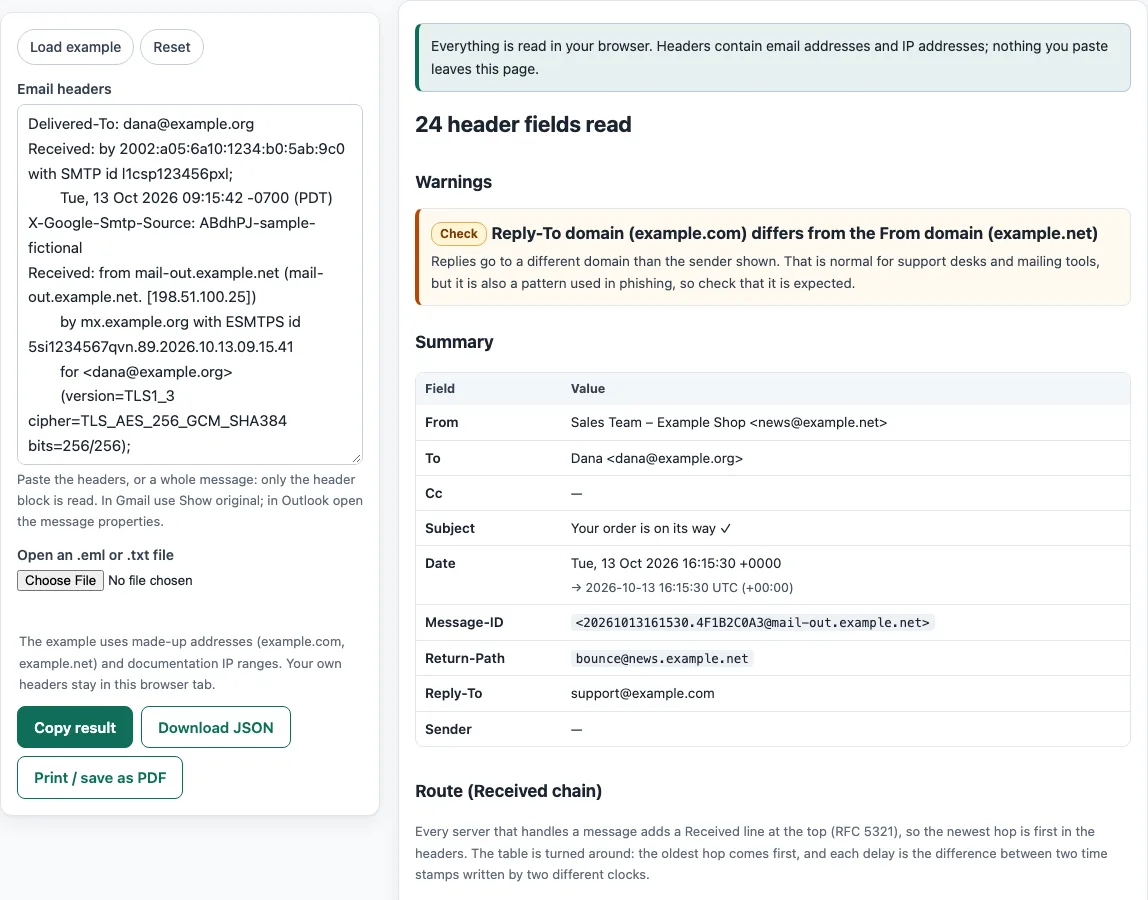
- To see how the tool works first, click “Load example”. A fictional sample is already in the box when the page opens.
- Click “Reset” to clear the box and start again.
- Read the warnings first. They flag things such as missing headers, failed checks, and a Reply-To domain that differs from From.
- Check the summary: From, To, Cc, Subject, Date, Message-ID, Return-Path, Reply-To and Sender.
- Follow the Received chain. It lists each hop oldest first, with from, IP, by, with, id, the time in UTC, and the delay since the previous hop. IP addresses in the named ranges are labelled, and everything else is labelled “Other”.
- Review the Authentication-Results tables, Received-SPF, DKIM-Signature tags, ARC sets, and any List-* or X- headers.
When you are finished, click “Copy result” to copy the report, “Download JSON” to save the data, or “Print / save as PDF” to keep a printable copy.
Nothing you paste is stored, so paste the headers again if you reload the page.
How do the Received lines and authentication results show what happened?
Each server that handles a message adds a Received line at the top of the headers. Reading the chain from the bottom up shows the route, and the tool lists the hops oldest first. Authentication-Results records what the receiving server found when it checked SPF, DKIM and DMARC.
Each hop is stamped by a different clock. The delay shown for a hop is the difference between two of those clocks, so it can be negative when the clocks disagree or when headers have been edited. The tool converts every time to UTC using the offset written in the header.
The authentication lines show results such as pass, fail, softfail or none. DKIM’s d= tag names the signing domain, and DMARC compares the domain in the From field with the domain that SPF or DKIM checked. ARC records the results at each step of forwarding, with instances numbered from 1 to 50.
Only the origination date and the From address are required, with Date and From appearing exactly once. A Message-ID is recommended but not required. A missing field is a reason to look closer, not proof of a problem.
Return-Path holds the envelope sender, the address bounces go to, which the last receiving server adds from the SMTP conversation. It often differs from the From address when a mailing service sends on behalf of a company, so a difference alone is not a warning sign. Message-ID is a unique identifier the sending system gives the message; replies refer to it in In-Reply-To and References headers, which is how mail programs group a conversation.
Headers can also be forged below the first server you trust: anything added before the message reached your own provider was written by the sender’s side, so read the Received lines added by your provider most carefully.
Sources (checked 13 October 2026): RFC Editor · RFC Editor (2) · RFC Editor (3)
Frequently asked questions
Is the email header analyzer free, and is anything I paste uploaded?
Yes, the email header analyzer is free, and nothing you paste or open is uploaded. It runs in your browser, so the headers stay on your device while you read them.
Headers contain IP addresses and email addresses, so they can be sensitive. Because the page sends nothing anywhere, you can check a message you would not want shared with a third party. The site does not send email, does not look up DNS records, and cannot see sender reputation. The checks only read what you paste or open, so a clean report describes the headers, not the message’s full history.
What header formats can I paste?
The tool has been tested with Postfix headers that hold the IP address in a comment, Gmail “by <address> with SMTP id” lines, Microsoft “with Microsoft SMTP Server” lines using “via Frontend Transport”, and sendmail-style lines without comments. Paste the header block as your mail program gives it to you.
Can I open a saved message file instead of pasting?
Yes. Use “Open an .eml or .txt file” to load a saved message, and the tool reads its headers.
Why does the report warn that Reply-To differs from From?
A different Reply-To domain is normal for support desks. The same pattern is also used in phishing, so the warning asks you to check the message yourself.
Does the tool show whether a sender is trustworthy?
No. The tool cannot see sender reputation and does not look up DNS records. It reports what the headers say and nothing beyond that.
What does “Other” mean in the IP address labels?
It means the address is not in one of the named ranges. The tool makes no claim about who owns the address.
Can I keep a copy of the report?
Yes. Click “Copy result” to copy it, “Download JSON” to save the data, or “Print / save as PDF” to keep a printable version.
Related tools
- Email spam checker: use it to look for spam signals in the content of an email you are writing.
- Spam word checker: use it to find individual words that often trigger spam filters.
- Subject line tester: use it to compare and refine a subject line before sending.
- Email preheader tool: use it to write the preview text that follows the subject line.
- Email HTML validator: use it to check the HTML of an email template for errors.
- DMARC report analyzer: use it to read DMARC aggregate reports about mail sent from your domain.