DMARC Report Analyzer
Open one or more DMARC aggregate reports to see who sends mail for your domain and whether it passes SPF, DKIM and DMARC.
Recent
Your last 10 settings, saved only in this browser. Nothing is uploaded.
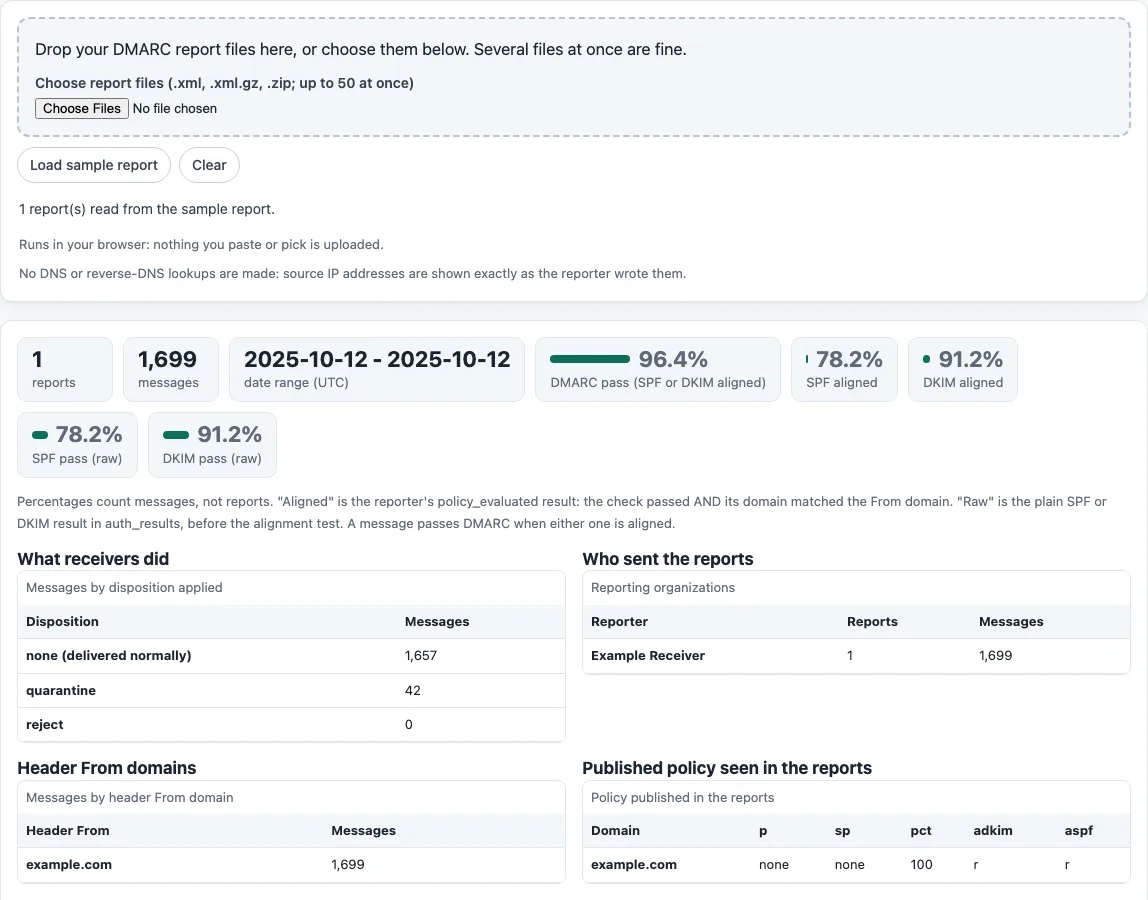
How to use the DMARC report analyzer
- Select the drop zone labelled “Choose report files” and pick your DMARC report files. The tool accepts .xml, .xml.gz and .zip files, up to 50 at once.
- If you do not have a report yet, select “Load sample report” to see every section filled with fictional example.com data.
- Read the summary tiles first: reports, messages, date range (UTC), DMARC pass, SPF aligned, DKIM aligned, SPF pass (raw) and DKIM pass (raw).
- Check “What receivers did” to see how much mail was set to none, quarantine or reject.
- Open “Who sent the reports” and “Header From domains” to see which organizations sent reports and which domains the mail claimed to come from.
- Review “Published policy seen in the reports” to confirm the policy and alignment modes your domain publishes.
- Use “Top source IP addresses” (top 25) to find the senders with the most messages, then check “Policy override reasons” for forwarding or mailing list causes.
- Go to “All records” and narrow the list with the filters: Source IP contains, Disposition, DMARC result, Header From contains and Reporter contains.
- Select “Download CSV (filtered)” to save only the rows you are currently viewing.
- Select “Clear” before you load a different set of reports.
The only export listed is the filtered CSV download, so set your filters first if you need a specific subset. Cells in the CSV that begin with =, +, - or @ are prefixed with an apostrophe, so spreadsheets will not run them as formulas.
What is a DMARC aggregate report?
A DMARC aggregate report is an XML file that a receiving mail server sends to the reporting address in your domain’s DMARC record. It summarizes mail the receiver saw that claimed to be from your domain. Each report covers a time window set by begin and end timestamps, which count seconds since 00:00:00 UTC on 1 January 1970; the tool shows these as UTC dates.
Each record groups messages by source IP and gives a count, the disposition applied, and the SPF and DKIM results. File names follow the pattern receiver!policy-domain!begin-timestamp!end-timestamp.xml or .xml.gz, with an optional unique ID. The RFC recommends gzip compression, and ZIP archives are also seen in practice, which is why the tool reads all three.
How does DMARC pass work: SPF or DKIM aligned?
A message passes DMARC when SPF or DKIM passes and that result is aligned with the header From domain. Alignment means the authenticated domain matches the From domain, with relaxed or strict matching set by the adkim and aspf values in the published policy. A message that fails SPF but passes DKIM with an aligned domain still passes DMARC.
The reporter’s aligned results are stored in policy_evaluated, while the raw results are stored in auth_results. The tool therefore shows DMARC pass, SPF aligned and DKIM aligned separately from SPF pass (raw) and DKIM pass (raw). A raw pass can still fail DMARC when its domain does not align with the From domain.
What do disposition, override reasons and alignment values mean?
Disposition is the action the receiver took: none, quarantine or reject. DKIM results can be none, pass, fail, policy, neutral, temperror or permerror. SPF results use the same pattern, with softfail added. Each result is shown exactly as reported.
Override reasons explain why a receiver did not apply the published policy. The listed types are forwarded, sampled_out, trusted_forwarder, mailing_list, local_policy and other. Forwarded and mailing_list are expected causes of SPF or DKIM failures on legitimate mail. The tool shows the type without interpreting it, so check the source IP and the sending service before deciding a failure is harmless.
Sources (checked 13 October 2026): dmarc.org · RFC Editor · pkware.cachefly.net · MDN · RFC Editor (2)
Frequently asked questions
Is the tool free, and is anything I paste uploaded?
The tool is free, and it does not upload the reports or any other text you open. Files stay in your browser, and the tool makes no DNS or reverse-DNS lookups, so checks only read what you give them. The XML reader ignores DOCTYPE and entity declarations, which blocks entity expansion and external loads. Decompressed data is capped at 30 MB per file and 120 MB in total.
Is the DMARC report analyzer free to use?
Yes. There is no account or sign-up, so you can load reports and read the results straight away.
Can I analyze a zipped DMARC report?
Yes. The tool accepts .zip files alongside .xml and .xml.gz, up to 50 files at once. Some reporters send ZIP archives even though the RFC text describes gzip compression.
Why does a record show SPF pass (raw) but not SPF aligned?
A raw pass means the SPF check succeeded, but the domain checked did not match the header From domain. DMARC requires alignment, so the aligned figure is lower. Compare the “Header From domains” table with the records in “All records” to find the mismatch.
Does the tool check my sender reputation or DNS records?
No. The site does not look up DNS records, run PTR or WHOIS lookups, or see sender reputation. Source IPs are shown as they appear in each report.
What does the sample report show?
It loads fictional example.com data that uses documentation IP ranges. Use it to see every table and filter before you load real files, then select “Clear” to remove it.
Related tools
- Email header analyzer: use it to read the routing and authentication headers of a single message.
- Email spam checker: use it to check the content of a message for common spam signals.
- Email HTML validator: use it to check the HTML of an email before you send it.
- Email signature generator: use it to create a signature for your email messages.
- Email footer generator: use it to add the unsubscribe link and postal address that bulk mail needs.
- Spam word checker: use it to review the wording of a campaign before you send it.
- HTML email templates: use it to start a newsletter or notification from a tested layout.