Dark Mode Email Checker
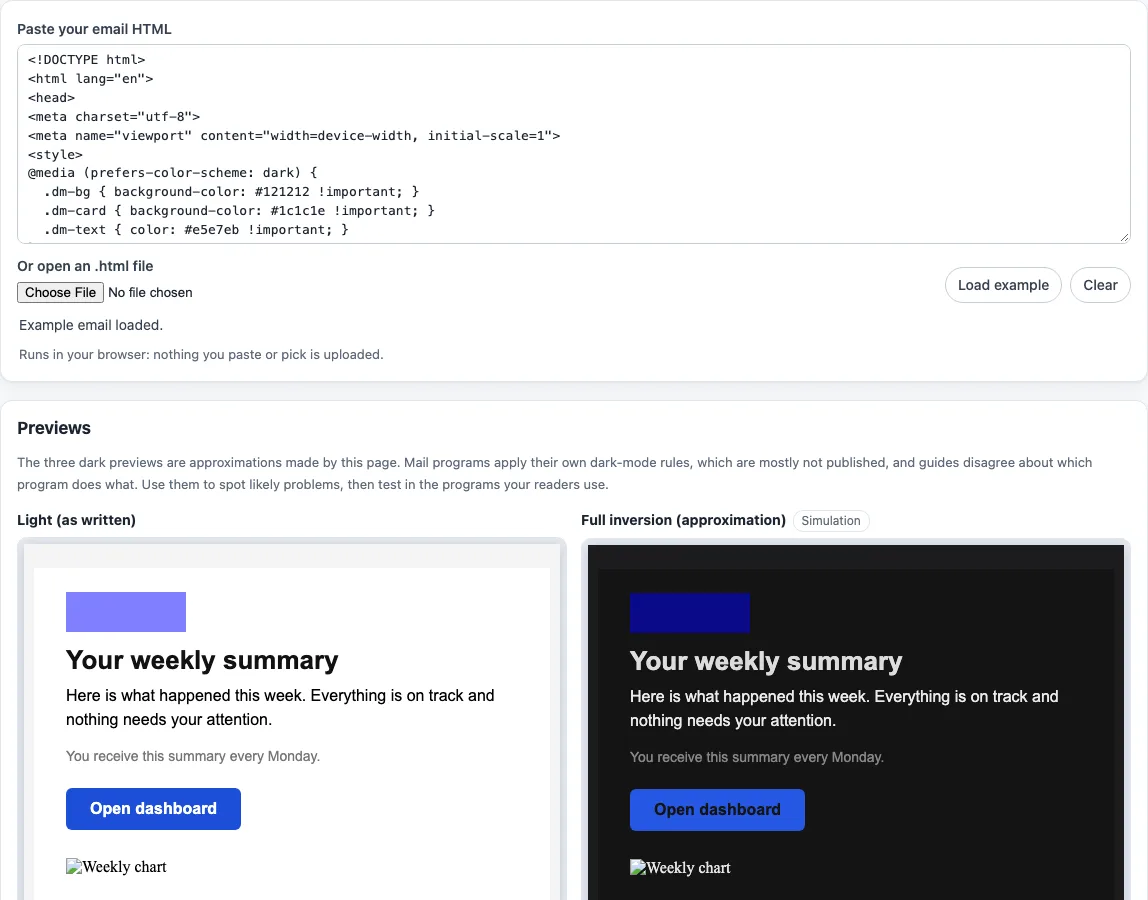
Paste your email's HTML to see it in light mode and simulated dark modes, find what breaks and copy the code that helps.
Recent
Your last 10 settings, saved only in this browser. Nothing is uploaded.
The dark mode email checker shows how your HTML email may look when a mail app switches to dark colors. Paste your email code or open an .html file, and it displays four previews side by side, counts low-contrast text color pairs in each, and reports color settings that mail apps may read differently. It runs in your browser, is free, and needs no sign-up. The checks only read what you paste or open, and no mail program publishes its dark-mode method, so the dark previews are approximations rather than copies of any real app.
Use it before you send a campaign to a list that includes readers on phones with dark mode switched on.
How to use the dark mode email checker
- Paste your email HTML into the input box. You can also click “Or open an .html file” to load a file from your computer, or click “Load example” to try sample code first.
- Read the four previews: “Light (as written)”, “Full inversion (approximation)”, “Partial inversion (approximation)” and “Your own dark styles”. Each one shows how many low-contrast inline text color pairs it contains.
- Open the Checks section. It lists the color-scheme meta tag, the supported-color-schemes meta tag, the CSS color-scheme property, and the prefers-color-scheme media query with per-program support. It also flags pure white backgrounds and pure black text, and shows contrast results for each preview.
- Look at the embedded images. Transparent PNGs in data: URIs are reported, and remote images are listed as not inspectable.
- Build a starting point with the Recommended dark-mode snippet. Use the four color pickers for Page background, Email body, Text and Links. The live contrast numbers update as you change them. The default palette is a design choice, not a standard.
- Optionally tick “Add Outlook.com selectors” to include the [data-ogsc] and [data-ogsb] rules. These rely on attributes Outlook.com adds in dark mode, so leave the option off if you do not need them.
- Click “Copy snippet”, add it to your email’s HTML, paste the full email back into the tool, and check the results again.
For local PNG files, use “Check an image for transparency” to see whether a logo has an alpha channel.
How do email apps turn an email dark?
Mail apps do not publish their dark-mode methods in any source we could read. Vendor guides describe three patterns (no color change, partial inversion and full inversion) but disagree about which program uses which, so this tool names no program as using any of them. The full inversion preview maps each color’s lightness L to 0.08 + 0.84 × (1 − L), keeping hue and saturation. The partial inversion preview darkens only backgrounds with L of 0.82 or more, and lightens only text with L of 0.35 or less. The “own” preview switches on your email’s @media (prefers-color-scheme: dark) blocks by rewriting the query to @media all, the same kind of run-time change caniemail reports for Outlook.com.
Which email apps read prefers-color-scheme?
Support is listed for Apple Mail, Outlook (Mac), Outlook.com and Samsung Email. It is not supported in Gmail, Outlook for Windows, Windows Mail, Yahoo Mail or Thunderbird. On Apple Mail, macOS supports it from 12.4 (10.3 does not), and iOS from 13.0. The source’s last test date is 2023-03-08, so treat the list as a starting point and test in the apps your readers use. Gmail is listed as unsupported on every platform, so Gmail readers see whatever color changes Gmail makes itself, and this tool cannot show those.
How does the contrast check decide whether text is readable?
The contrast check uses the WCAG 2.1 formula, which compares the relative luminance of two colors. WCAG asks for at least 4.5:1 contrast for normal text and 3:1 for large text, and the tool reports the ratio for each inline color pair in each preview. Pure #000 and #fff are flagged because they change most under inversion in these previews. We found no primary source requiring you to avoid them, so treat the flag as a prompt to look again. The tool changes only inline colors, bgcolor and color attributes, and colors in style declarations. It does not alter images, and class-based color rules are tested only through the “own” preview.
Sources (checked 13 October 2026): Can I email · hteumeuleu.com · Can I email (2) · Can I email (3) · developer.apple.com · W3C
Frequently asked questions
Is the tool free, and is anything I paste uploaded?
Yes. The tool is free, and there is no account or sign-up. Everything runs in your browser, so nothing you type, paste or open is uploaded. The site does not send email, look up DNS records or see sender reputation; its checks only read what you give them. Signatures, footers, templates and images made with the site’s tools may be used for any purpose, including commercial use, without attribution.
Does this tool show exactly how Gmail will display my email in dark mode?
No. The three dark previews are approximations, and Gmail does not support prefers-color-scheme on any platform. Gmail’s own color changes cannot be shown here, so test a sample email in Gmail directly.
Why does an email pass the previews but still look wrong in a mail app?
The previews only read inline colors and style declarations, and they do not alter images. Class-based rules are tested only in the “own” preview, so a real app can still behave differently.
Do I need to tick “Add Outlook.com selectors”?
No, the option is optional. It adds rules that match the data-ogsc and data-ogsb attributes Outlook.com adds in dark mode, so leave it off if your readers do not use Outlook.com.
Related tools
- Email signature dark mode check: use it to check how a signature’s colors hold up in dark mode.
- Email HTML validator: use it to check your email’s HTML for structural problems before you test colors.
- HTML email template: use it to start from a ready-made layout instead of building from scratch.
- HTML email builder: use it to assemble an email visually before you check it here.
- Email preheader tool: use it to write the preview text that appears beside your subject line.
- Email template size calculator: use it to see how large your email code is.